
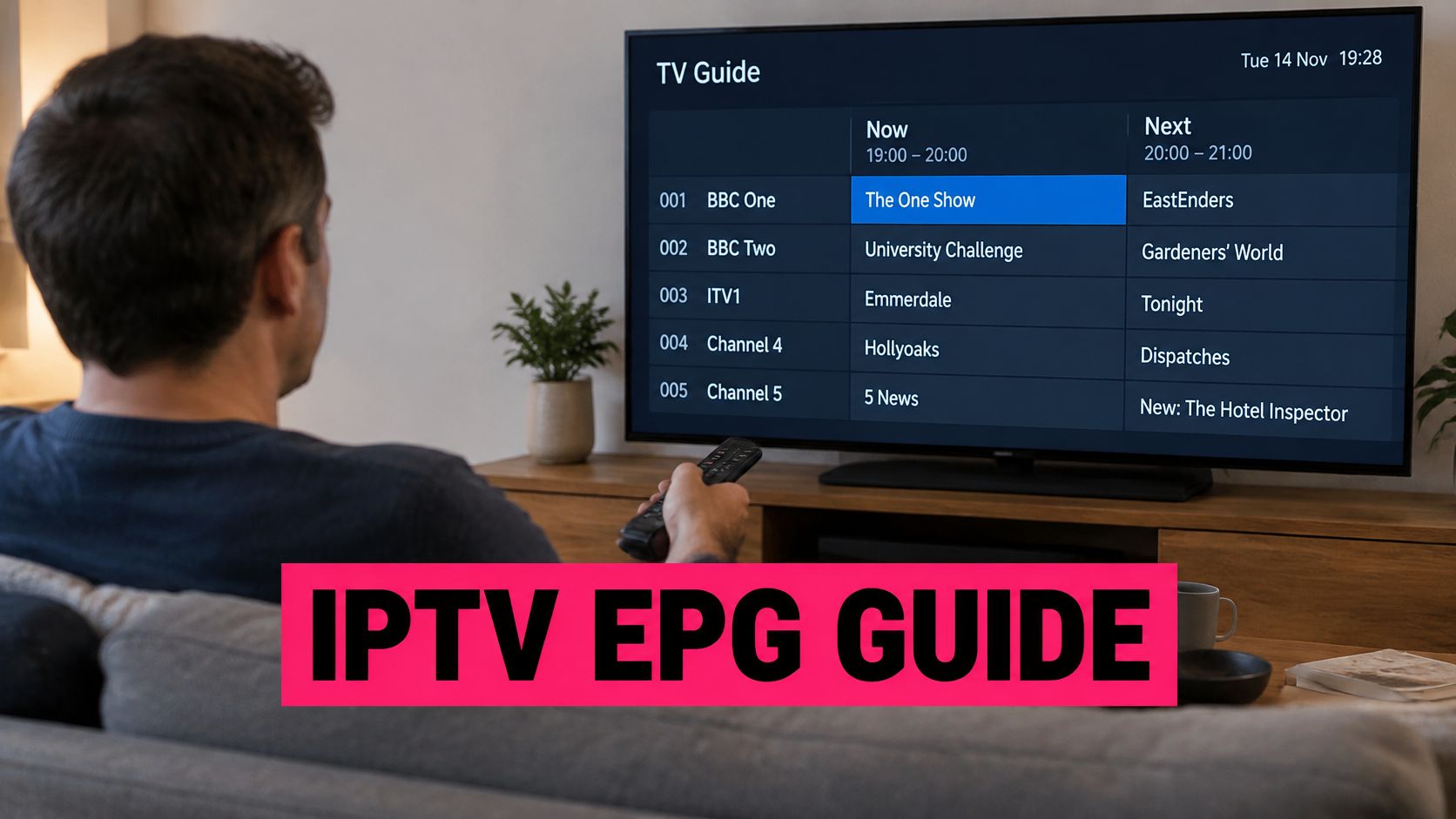
Two IPTV subscriptions can show the same numbers on a sales page. The same channel count, the same 4K badge, the same device limit. The screen that decides whether your evening runs smoothly doesn't appear in that comparison at all, and it's the one you'll open every single time you sit down: the electronic programme guide.
A guide can look immaculate and still be wrong. Logos in place, genres colour-coded, a search box that responds, and then a hockey game that started nine minutes ago is still listed under the previous programme. That gap is worth understanding before you pay for a year of anything.
The guide is metadata. The picture is a video stream. They arrive through different systems, fail in different ways, and deserve separate tests.
Table of Contents
- What an Electronic Programme Guide Does in IPTV
- EPG Features to Check Before You Subscribe
- Why Guide Accuracy Matters During Live Sports
- Bandwidth That Keeps Guide-Driven Streams Smooth
- How to Test the Guide on a Free Trial
- Checking French, English and Accessibility Labels
- Frequently Asked Questions About IPTV EPGs
- Confirm the Guide Before You Commit
What an Electronic Programme Guide Does in IPTV
Say it's 7:20 on a Tuesday and you want the 7:30 puck drop. You open the guide, find the channel, see the game listed with a start time, skim a two-line description, and press select. Behind that small action sits a data pipeline and a set of functions most viewers never think about.
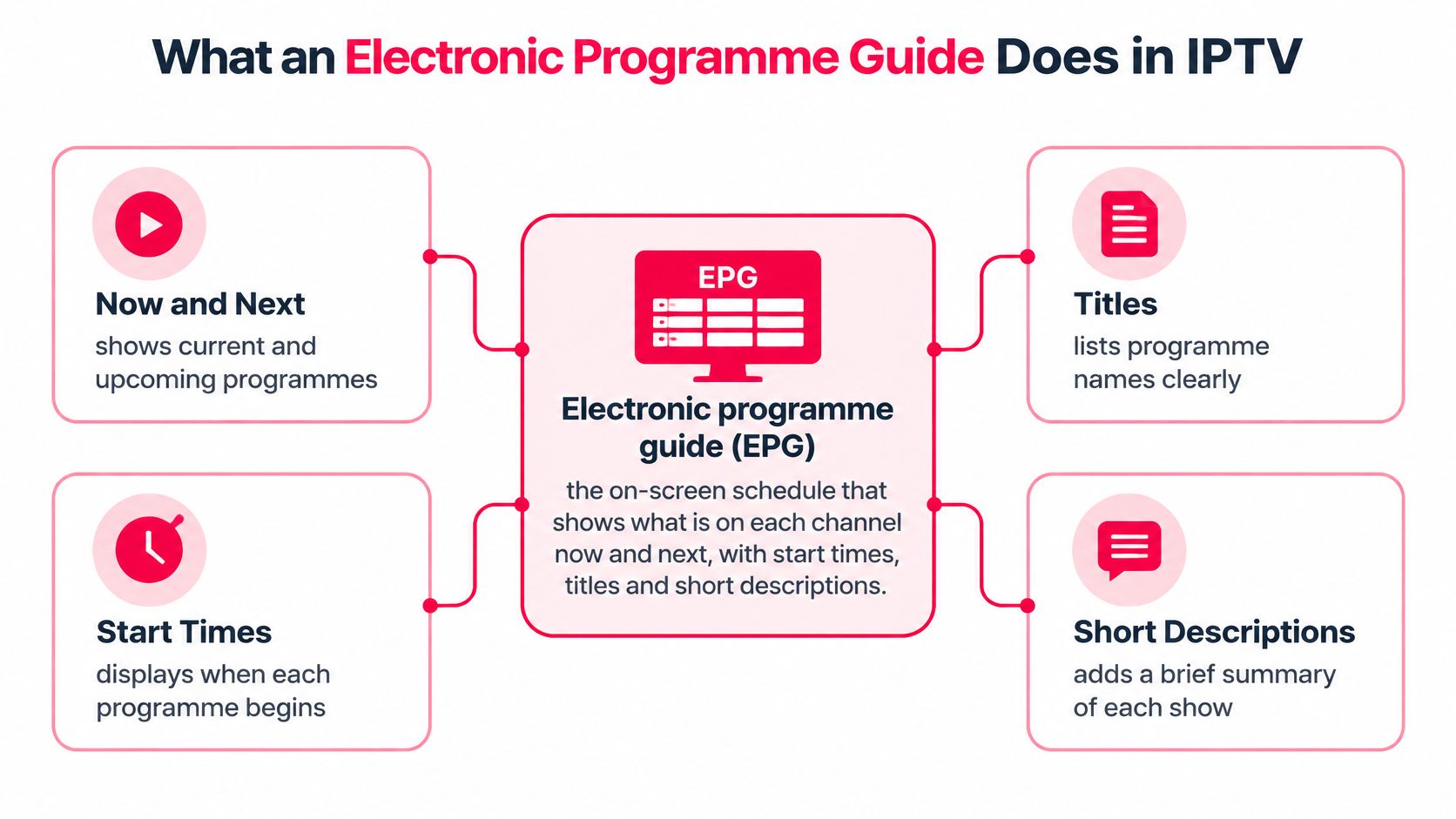
An electronic programme guide (EPG) is the on-screen schedule that shows what's on each channel now and next, with start times, titles and short descriptions. Picture a printed listings page that updates itself and lives inside your remote's menu, except you can search it, filter it and jump straight from a listing to the channel.
The information it carries looks simple on screen, but four pieces do most of the work.
Where the listings come from
The chain runs in one direction. A broadcaster or a listings aggregator supplies programme information such as title, start and end times, genre, language and description. The app on your device turns that feed into a grid. You use the grid to watch now, plan a night, or jump to a channel. When any link in that chain breaks, you get a blank row, a stale title, or a programme that supposedly started forty minutes ago and is still marked as upcoming.
The three views you'll actually use
- Now and next. The default view answers the only question that matters when you sit down: what's on, and what follows.
- The forward schedule. Scroll right and you see hours or days ahead on each channel. This is how you plan a Saturday around a game and a film.
- Categories and search. Genre groups, language filters and a search box that looks across channel names and programme titles, which is the difference between finding a match in ten seconds and scrolling for two minutes.
The Canadian case for one bilingual guide is practical. The CRTC reports that online television viewing accounted for 6.68% of English-language viewing and 5.08% of French-language viewing in 2024, while traditional television still averaged 10.3 hours per week (CRTC television viewing data). A guide that lists English and French channels side by side saves you from trawling a long channel list to reach Radio-Canada or TVA.
A channel list is not a guide
Worth separating two things that get sold together. The channel list tells you which channels exist. The guide tells you what's on them and when. A service can carry a huge lineup and still show blank rows for half of it, and that's exactly what IPTV with EPG should not feel like.
Two checks take about two minutes on any service. Does every channel show a now-and-next entry, not just the popular ones? Does the schedule run several days ahead when you scroll? If either answer is no, you're looking at a channel list with a decorative grid attached.
EPG Features to Check Before You Subscribe
A guide can look polished while showing stale or misleading information. Use these criteria to judge its usefulness, and keep the focus on what the EPG displays rather than whether the video stream plays smoothly.
| Feature | What good looks like | What to check |
|---|---|---|
| Schedule range | Live channels have listings at least seven days ahead | Check how far the schedule extends on several channels |
| Start-time accuracy | Listed times match the broadcaster's schedule within a few minutes | Compare programme times with the broadcaster's published schedule |
| Overrun handling | Listings adjust when a live event runs long | Check whether the following programme's listed time changes |
| Time zone display | Listings use local time for the viewer's province | Confirm the displayed time against the expected local time |
| Language labels | English and French channels are clearly identified | Check whether language labels are consistent across listings |
| Accessibility markers | Described video and captions are identified where available | Look for accessibility labels on programme listings |
| Search and categories | Search and categories help organise channels and programmes | Check that search results and category names are clear |
| Backup sports feeds | Duplicate feeds have distinct, understandable labels | Check whether similarly named feeds can be told apart |
The guide is an information layer, not the video delivery system. A clear grid can still carry inaccurate times, unclear time-zone information or confusing feed names. Treat each criterion as a separate measure: a strong result in one area does not guarantee the others are reliable.
For a consistent comparison, record what each provider displays for the same channels and programmes. A small table of your own makes differences easier to spot later, without confusing a well-designed screen with accurate listings.
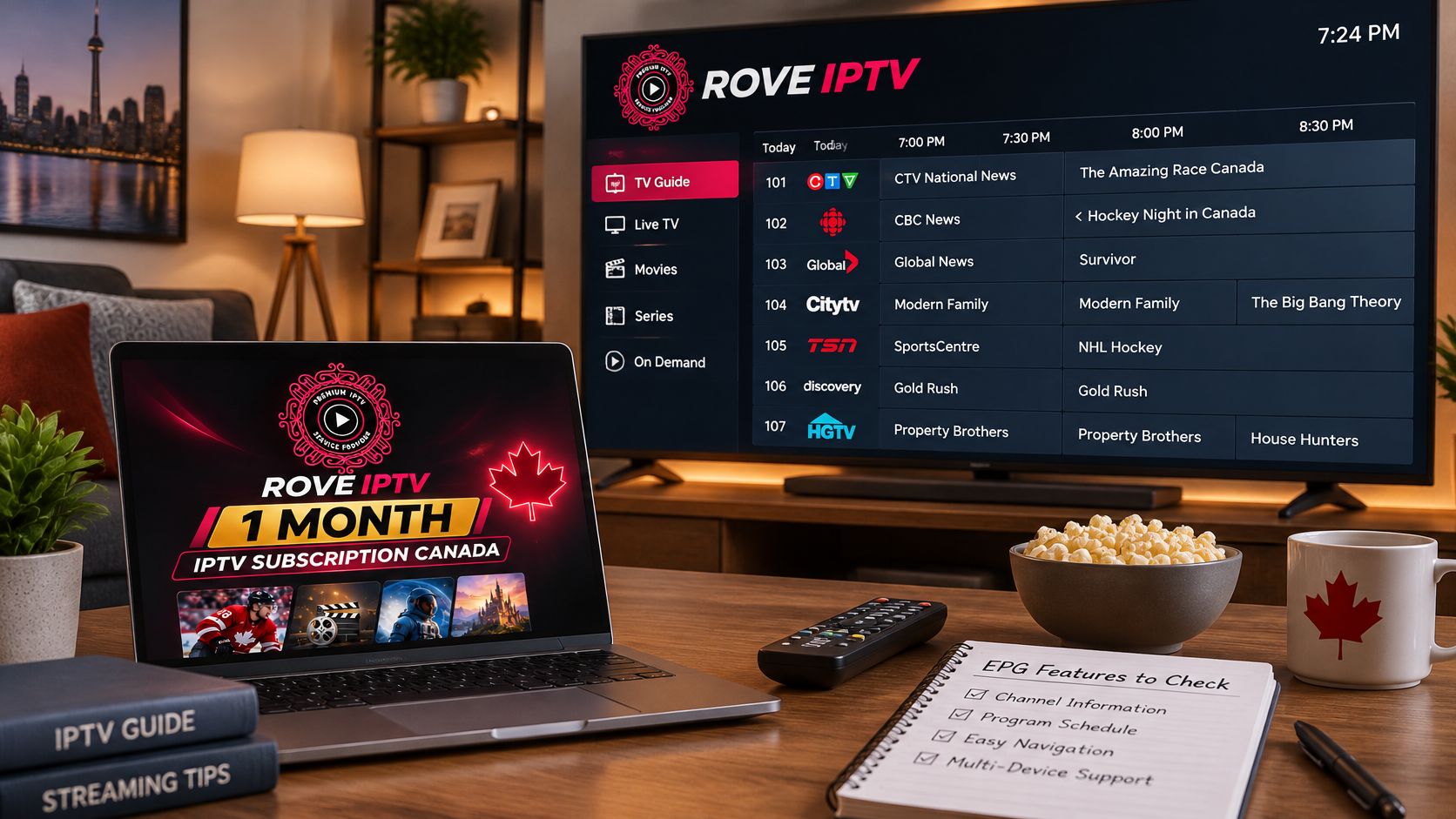
A short subscription can give you time to assess the guide. The 1 Month Premium Package provides access to live television, on-demand content, an EPG and setup assistance.
Why Guide Accuracy Matters During Live Sports
A hockey game goes to overtime. The grid rolls over to the next programme on time, because the metadata never moved. You switch channels to catch the second half of a doubleheader and find the opening faceoff already gone, and it's not the stream's fault at all.
That small failure gets more expensive every season. The CRTC's communications-market data records traditional television viewing declining by an average of 5.9% a year since 2021, while online streaming grew 18.4% a year, with streaming recently stabilising (CRTC communications-market data). More households now choose what to watch from a digital interface, and the guide is that interface.
Two systems, two failure modes
Programme metadata is a text feed that gets ingested, normalised and displayed. Video is a continuous bitrate stream that has to survive your Wi-Fi, your ISP and the provider's servers. A guide can be perfectly accurate on a night when every stream stutters, and a stream can be flawless while the listed start time is twenty minutes out.
Backup feeds make the difference visible. Some providers label duplicate sports streams so you can pick one deliberately; others run two under a single name and leave you guessing which is which. Overrun handling, backup-feed naming and time-zone display are the three checks that expose the gap, which is why they sit near the top of any trial.
If you're still figuring out where the games you want appear, our guide to where to watch live sports in Canada covers the channels and apps involved.
Practical rule: Before a big game, confirm the listing on the device you'll actually use, and keep the broadcaster's published schedule open as a second reference. Two sources cost nothing and settle an argument with the grid in seconds.
Bandwidth That Keeps Guide-Driven Streams Smooth
The guide uses almost no data. A full week of listings is trivial next to a single minute of video, which is why a blank or sluggish grid is almost never a bandwidth problem. What bandwidth decides is whether the stream you picked from that grid plays without stopping.
Resolution sets the load. The CRTC's technical guidance places typical standard-definition streaming at about 3 to 5 Mbps, HD at 5 to 8 Mbps, and 4K/UHD at roughly 25 Mbps minimum (CRTC broadband measurement guidance).
| Picture quality | One stream | Two simultaneous streams |
|---|---|---|
| Standard definition | 3-5 Mbps | 6-10 Mbps |
| HD | 5-8 Mbps | 10-16 Mbps |
| 4K/UHD | About 25 Mbps minimum | About 50 Mbps |
Count capacity for the household, not the device
Two concurrent 4K streams need roughly 50 Mbps of sustained download before protocol overhead, Wi-Fi contention, other traffic and bitrate peaks enter the picture. Add a phone pulling an update, a laptop on a video call and a speaker streaming music, and the cushion disappears. Adaptive picture quality is what saves the evening: a service that steps down to a lower rendition before throughput falls below the current bitrate keeps playing, while one that waits rebuffers.
Test at the screen, not the router
Measure sustained throughput and latency at the device you watch on, during the busiest combination your household expects. A live game on one HD screen while someone else watches an on-demand film on another is a fair test. An idle house at 11 a.m. is not. If you want to see how a speed test is properly run, this walkthrough on check broadband speeds across New Zealand explains the measurement sequence, and the method transfers directly to a Canadian connection.
Availability isn't universal either. The CRTC reports that 93.8% of Canadian households had access to Internet services in 2023-24 (CRTC communications report). Rural, northern and remote communities are likelier to sit in the remaining gap, so test before committing to a long plan.
Rule of thumb: if the household can't sustain two 4K streams, plan 4K on the main screen and HD on the second rather than expecting both. If playback still stutters after all of this, our explainer on why IPTV keeps freezing walks through the causes in order.
How to Test the Guide on a Free Trial
An hour on a free trial tells you more about a guide than any sales page will. Run the test on the device you plan to watch on, since a guide that loads cleanly on a laptop can still be wrong on the Firestick in your living room. Each step below turns one row of the features checklist from earlier into a hands-on test.
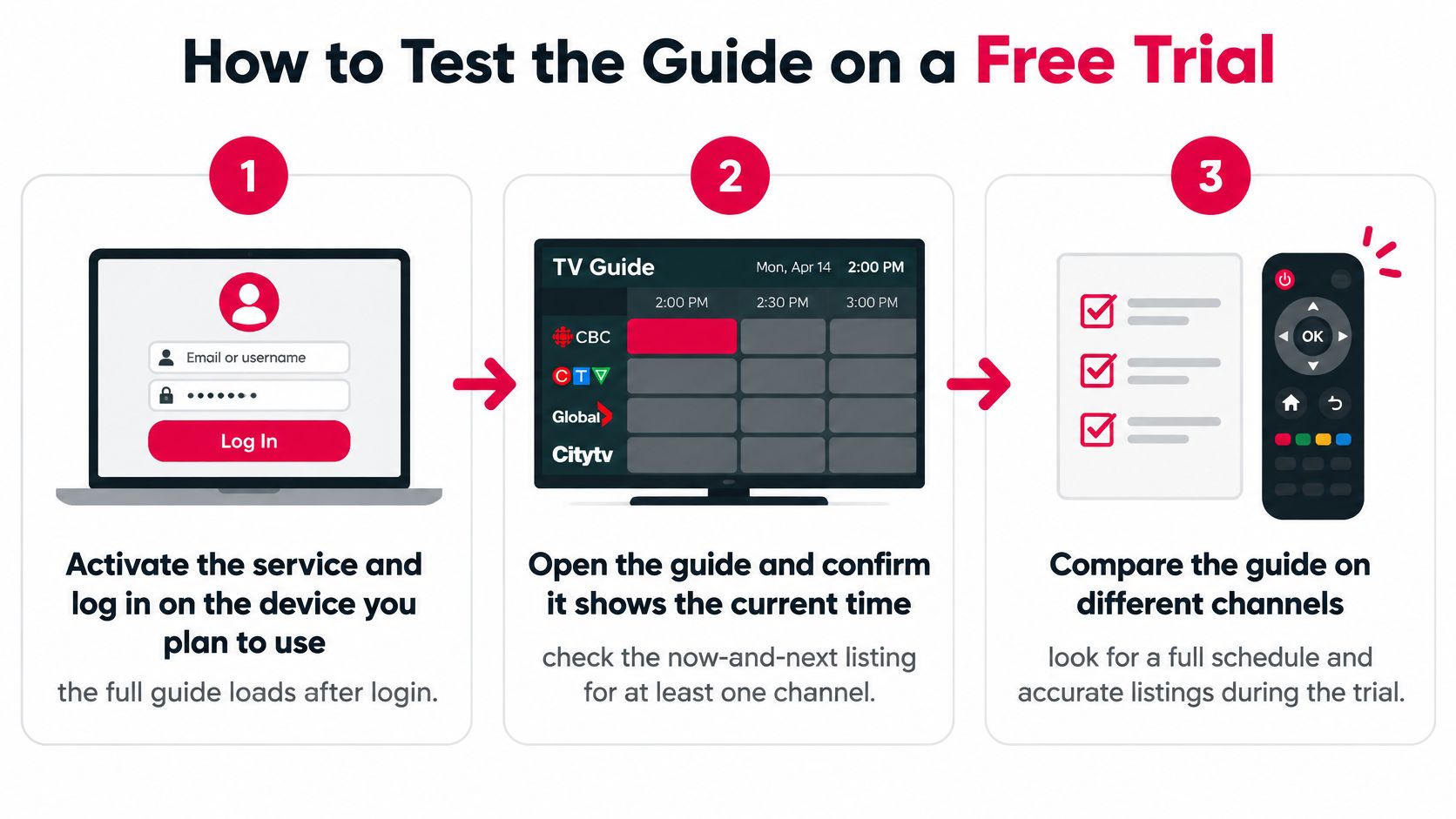
- Activate the trial and log in on your own device. The full guide loads after login.
- Open the guide. Confirm it shows the current time and a now-and-next entry for at least five channels, including one you'd never normally watch.
- Compare two start times. Hold the listed time next to the broadcaster's published schedule. A few minutes of drift is normal; fifteen is not.
- Check your time zone. Use the reference table below for your province's expected offset. A guide stuck on Eastern time looks right in Toronto and is wrong by three hours in Vancouver.
- Scroll forward seven days. Note whether listings stay complete or thin out after day two.
- Watch a live sports overrun. Check whether the listing shifts when play runs long and which backup feed is labelled.
- Search a team name and a show title. Record whether results come from more than one channel and whether genre or language filters exist.
- Check one label. Open a listing and confirm its language or accessibility marker appears in the grid itself, not only inside the player after the stream starts.
Activation is immediate, and step-by-step setup instructions come with every plan, backed by support that runs around the clock, so a mislabelled channel or a wrong offset is a reasonable thing to raise during the trial. A free IPTV trial in Canada gives you the access you need to finish all eight steps before paying.
Write it down as you go. Date, device, channel number, what the guide said, what actually aired. A support team can act on "City showed the 8 p.m. listing at 8:14 on a Firestick" and can't do much with "the guide is wrong".
A time zone reference for step four
| Zone and example provinces | Offset from Eastern | Example check |
|---|---|---|
| Atlantic (Nova Scotia, New Brunswick) | +1 hour | 7 p.m. Eastern should read 8 p.m. |
| Newfoundland and Labrador | +1 hour 30 minutes | 7 p.m. Eastern should read 8:30 p.m. |
| Eastern (Ontario, Quebec) | Reference | Match the listing to the broadcaster's schedule |
| Central (Manitoba) | -1 hour | 7 p.m. Eastern should read 6 p.m. |
| Central (Saskatchewan) | -1 hour in winter, -2 hours in summer | Saskatchewan does not observe daylight time |
| Mountain (Alberta) | -2 hours | 7 p.m. Eastern should read 5 p.m. |
| Pacific (British Columbia) | -3 hours | 7 p.m. Eastern should read 4 p.m. |
A short video walkthrough sits below if you'd rather see the sequence than read it.
Checking French, English and Accessibility Labels
A grid can look finished and still leave out the labels you came to check. Language, captions and described video sit in the listing data. The picture is a separate delivery. The guide works like a library card, and the stream works like the item on the shelf: a clean card does not prove the item is tagged in French, in English, or with description.
The CRTC states that Canadian broadcasting distributors are expected to let subscribers identify programming with described video in their EPGs, and it notes that many guides lack features such as spoken on-screen text, audible confirmation of selections, adjustable font size and contrast controls (CRTC Regulatory Policy 2015-104). On a large television those gaps are easy to overlook until someone who needs description or captions has already started the programme.
The CRTC's 2025 accessibility notice sets out a planned schedule of described-video and audio-description requirements for online and on-demand services, including a required search feature for programming with described video, with that phase-in described as running through December 2027 (CRTC accessibility notice 2025-272). The notice is the regulator's timetable. It is not a description of the fields inside any one app. Ask the provider which of those fields its guide fills.
Send these questions in writing, and keep the reply with your trial notes so two services can be compared on the same points:
- Which listing fields show language, so a French title and description are not filed under English?
- Do caption and described-video markers appear in the grid before playback, or only after the player opens?
- Can search use those markers, or does search only match the programme title?
- Does the guide follow the device's font size and contrast, or do those settings affect only the video?
- Is there any spoken prompt or audible confirmation of a selection, separate from the programme audio?
Viewers in Quebec, Ontario and elsewhere who switch languages, or who rely on described video, use those answers every time they pick a show. An "EPG included" line on a sales page only means a schedule is present. It does not mean the language or accessibility fields are filled in, and it does not mean the video feed matches the label. Do not treat a service as meeting a specific regulatory standard unless the provider says so.
Frequently Asked Questions About IPTV EPGs
Does an EPG show French programmes and described video?
That depends on the labels in the guide. Open a programme's details and check whether its language or described-video information appears there, then see whether the same label is available in search results. A label on the programme page may not carry through to search.
Can I record or catch up on programmes from the guide?
A listing does not confirm that recording or catch-up is available. Check the plan and device details, then look at the programme's options in the guide to see whether it links to a recording or catch-up feature, or only shows the scheduled time.
Why does the guide show the wrong time?
A schedule can be outdated, a live event can run long, or the device can use the wrong time zone. To check the device setting, open its Settings menu and look under Date & Time, General, or System, depending on the device. The EPG organises listings; it does not correct the device clock or update a schedule that has not changed.
Does the guide use much data?
The guide uses little data compared with video. It displays schedule information, while watching a programme uses bandwidth for the stream.
Will a good guide stop buffering?
No. The guide and video delivery are separate systems. A well-organised grid cannot prevent buffering if the connection or stream is unstable.
Confirm the Guide Before You Commit
A longer subscription makes sense only if the listings cover the period you need, match local time, and identify live events and backup feeds clearly. If start times or time zones are wrong, choose a shorter plan while you weigh the risk.
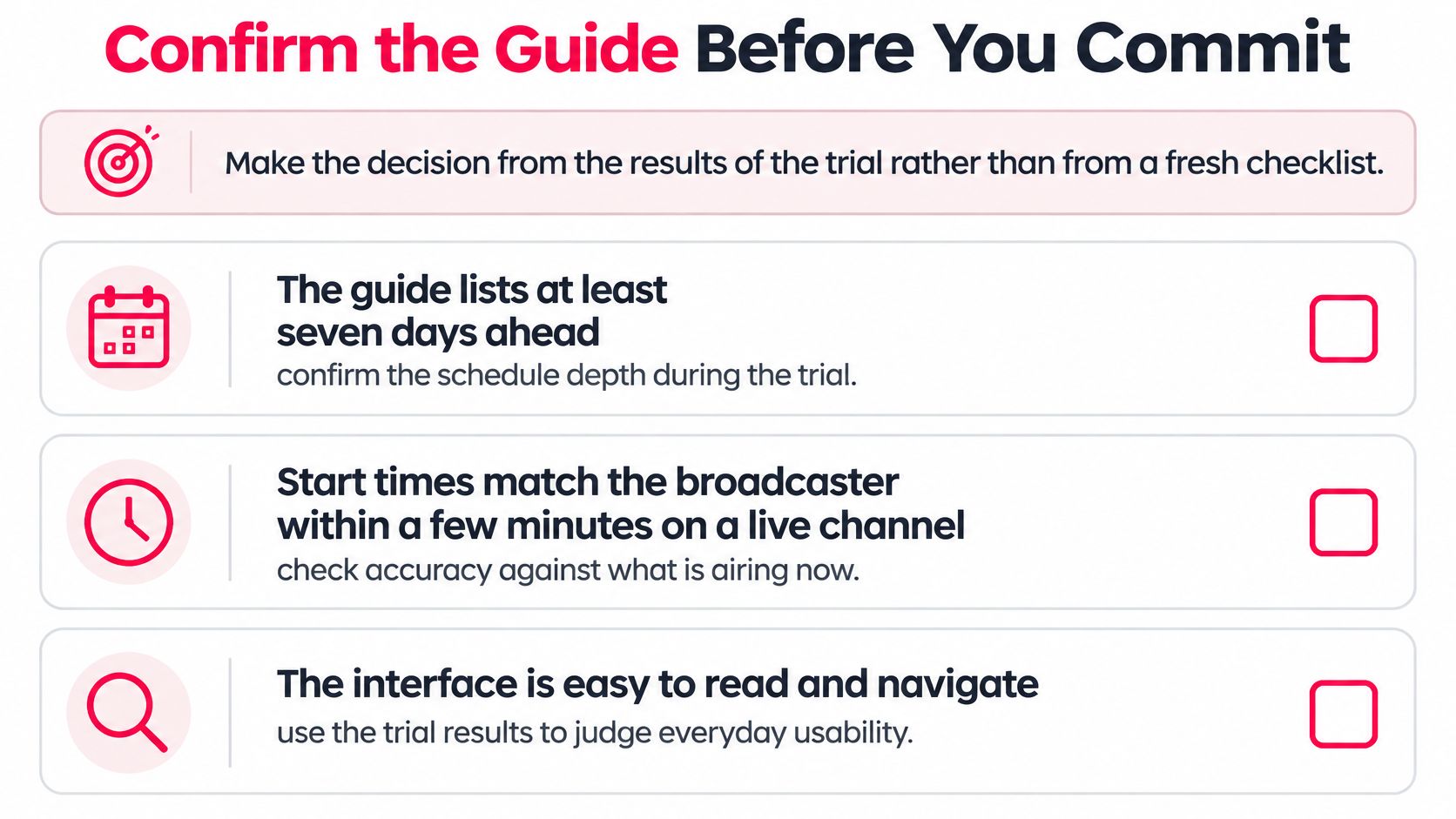
The EPG organises programme information; it does not control whether a video stream plays smoothly. A polished grid can still show an incorrect time or label, so judge the guide separately from the stream. ROVE IPTV's guide includes categories and search, and the service offers a free trial. Use that time to see whether its listings suit your viewing habits before selecting a subscription length.
ROVE IPTV provides setup instructions with every subscription and 24/7 customer support. If a programme label or time looks wrong, those resources can help you check the setup and get assistance.
ROVE IPTV streams live channels and on-demand content, with subscription access available immediately after purchase. Visit ROVE IPTV to explore the free trial and choose a plan length that fits your household.

No Responses